Engagement
Emergency Text Messaging
Learn how to effectively send emergency text messages using UnDesked's built-in features to keep your team informed and safe in urgent situations.
Resolve the issue of employees not appearing as host on the kiosk by adjusting the "Host visible on kiosk" setting in UnDesked. Learn how to fix it fast!
If you've ever had an employee who exists in your Users list but visitors can't find them as a host option at the kiosk, you're not alone. This is one of the most common support questions we get — and the good news is, it's almost always a one-toggle fix.
Here's what's happening and how to resolve it.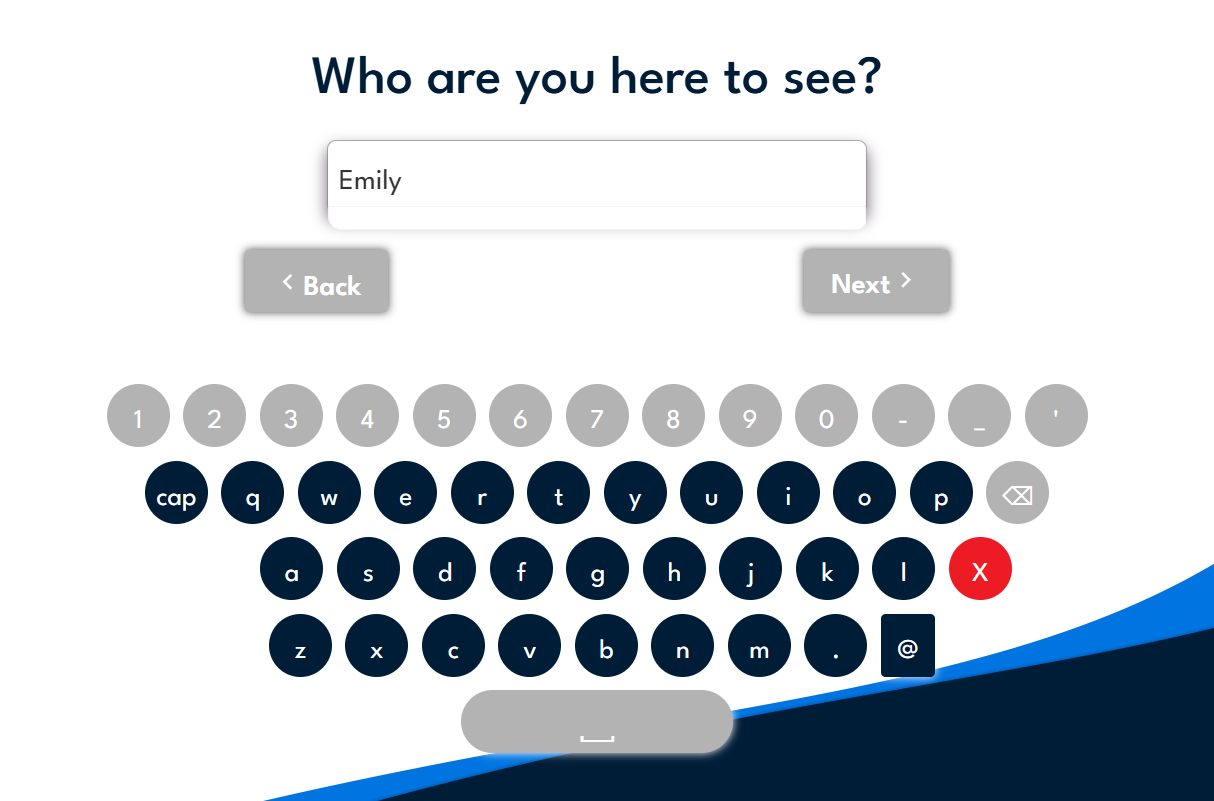
In UnDesked, being a user or employee in the system does not automatically make someone selectable as a host at the kiosk. There is a separate per-user setting (toggle) called "Host visible on kiosk" that controls whether a person appears in the host list, as an option, when a visitor is checking in.
If that setting is toggled off for a user, they will not show up as an option at the kiosk, even if they are active in the system and receiving other notifications.
This setting can end up toggled off in a few ways:
Step 1: In the UnDesked admin panel (left blue nav bar), navigate to Visitors > Hosts.
Step 2: Find the user who is not appearing on the kiosk. You can search by name.
Step 3: Open their profile and look for the "Host visible on kiosk" toggle.
Step 4: Make sure the toggle is turned on (enabled).
Step 5: Save the change. The user will now appear as a selectable host at the kiosk immediately — no restart or refresh needed.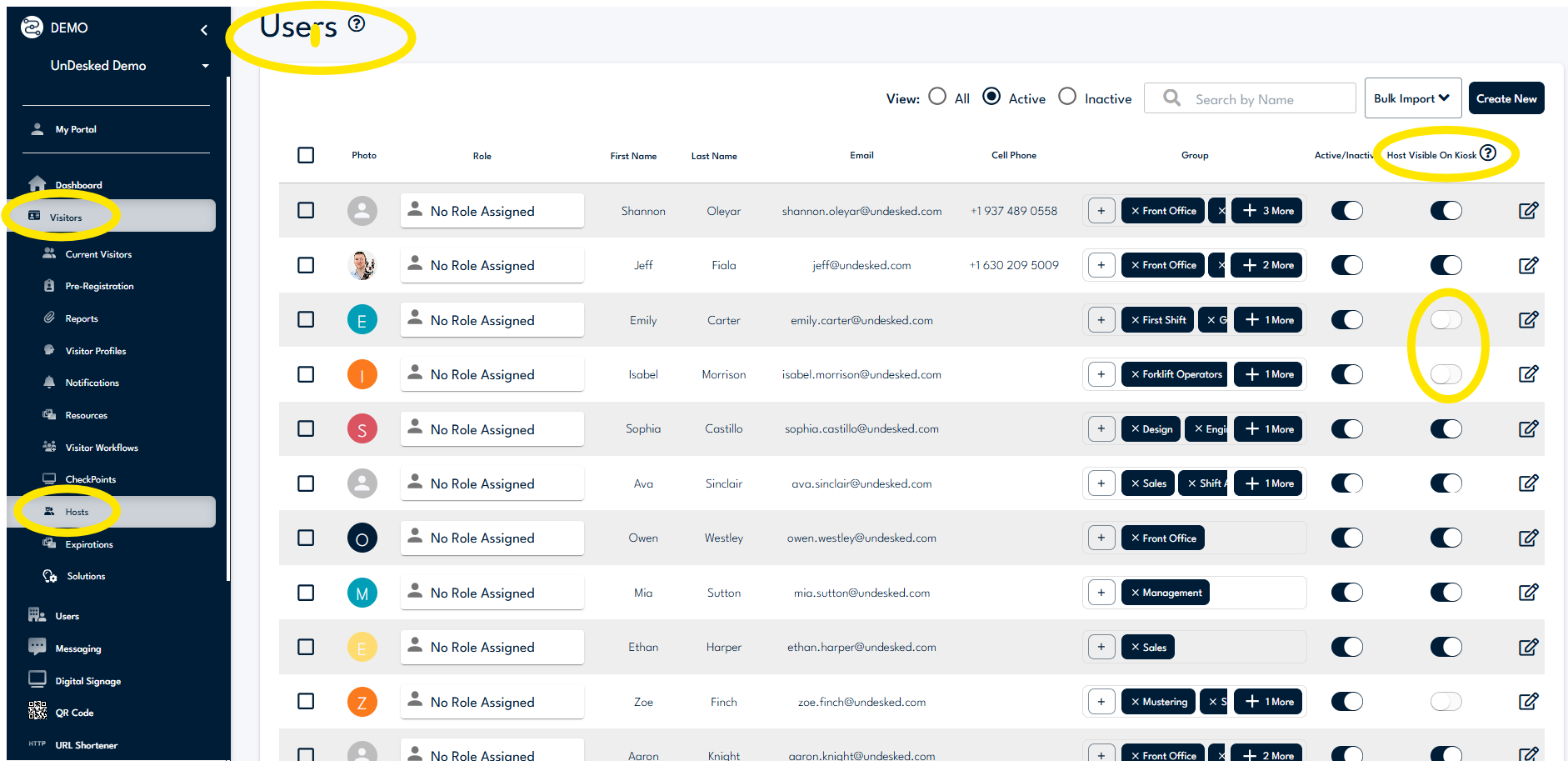
Once the toggle is enabled, go to your kiosk and start a visitor check-in. When the host selection screen appears, the employee should now be listed as an option.
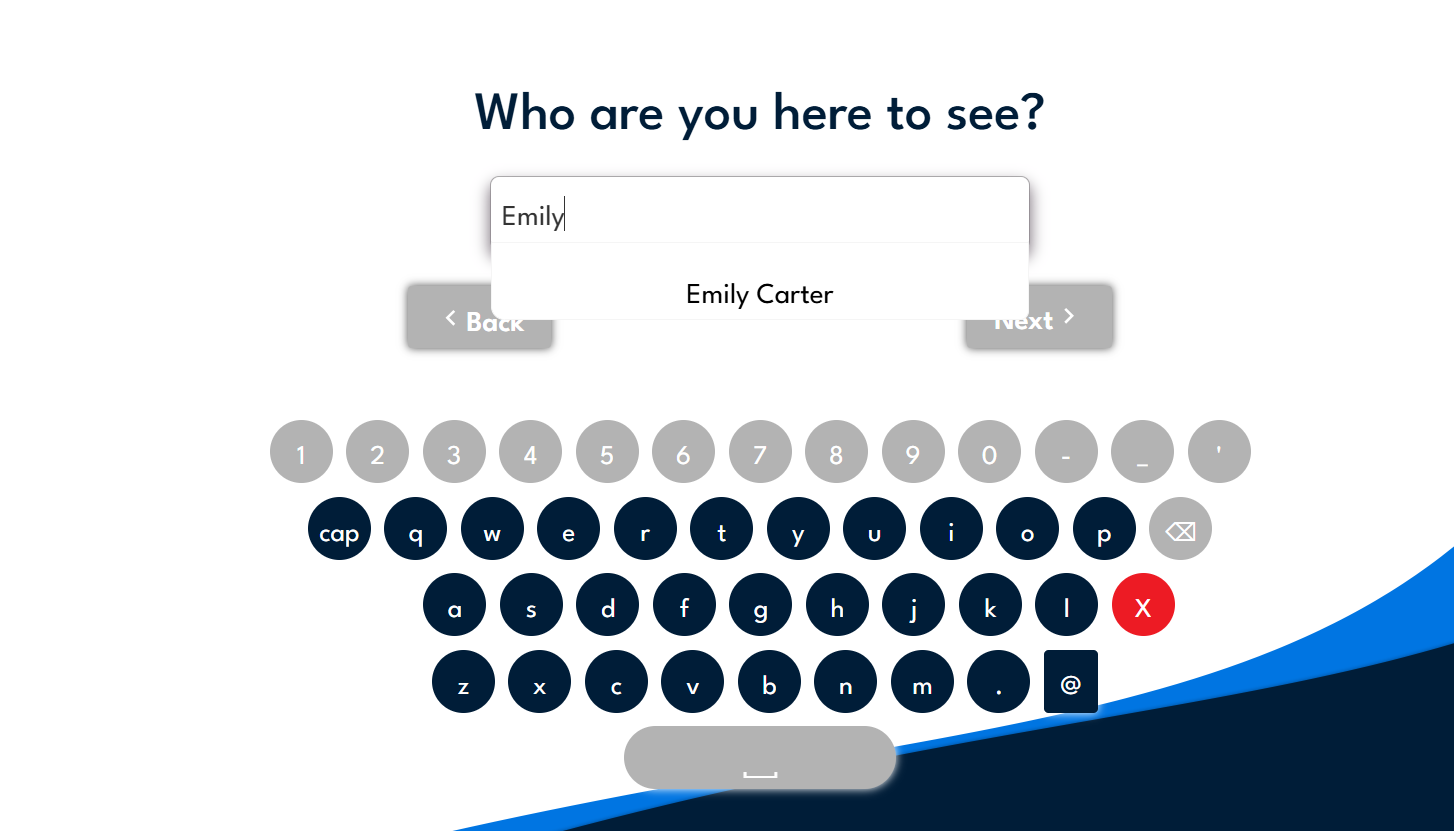
If you're using search mode (rather than displaying all hosts as buttons), have the visitor type the employee's name to confirm they appear in the search results.
If several employees are missing from the kiosk at once, the most efficient approach is to go to Visitors > Hosts and review the list. Users with "Host visible on kiosk" turned off will not appear during visitor check-in. Work through each affected user and enable the toggle.
This can happen after a large roster import or a directory sync (such as Azure AD) if phone numbers or other fields were updated via a manual upload at the same time. If you recently ran a bulk update and noticed employees going inactive or disappearing, reach out to support — we can help verify the sync and restore the correct state.
| Symptom | Likely Cause | Fix |
|---|---|---|
| Employee exists in Users but not visible on kiosk | "Host visible on kiosk" toggle is off | Enable the toggle under Visitors > Hosts > [User] |
| Multiple employees disappeared after a roster upload | Bulk import conflicted with directory sync | Contact support to review the sync |
| Employee is inactive | User account is deactivated | Reactivate the user, then confirm the host toggle is also on |
If you've enabled the toggle and the employee still isn't showing up, or if you're seeing broader issues with your host list after a sync, contact the UnDesked support team at support@undesked.com. Include the employee's name and your account name and we'll get it sorted quickly.
Learn how to effectively send emergency text messages using UnDesked's built-in features to keep your team informed and safe in urgent situations.
Simplify team communication with UnDesked. Manage tasks, automate workflows, and ensure seamless operations for deskless teams.
Paper breaks down at the handoff. Learn how UnDesked Collaborators lets teams complete permits and checklists together in real time.